
Discover the new Capture One to Affinity workflow in 2026. Preserve layers, masks, and edits while speeding up your photography editing process.


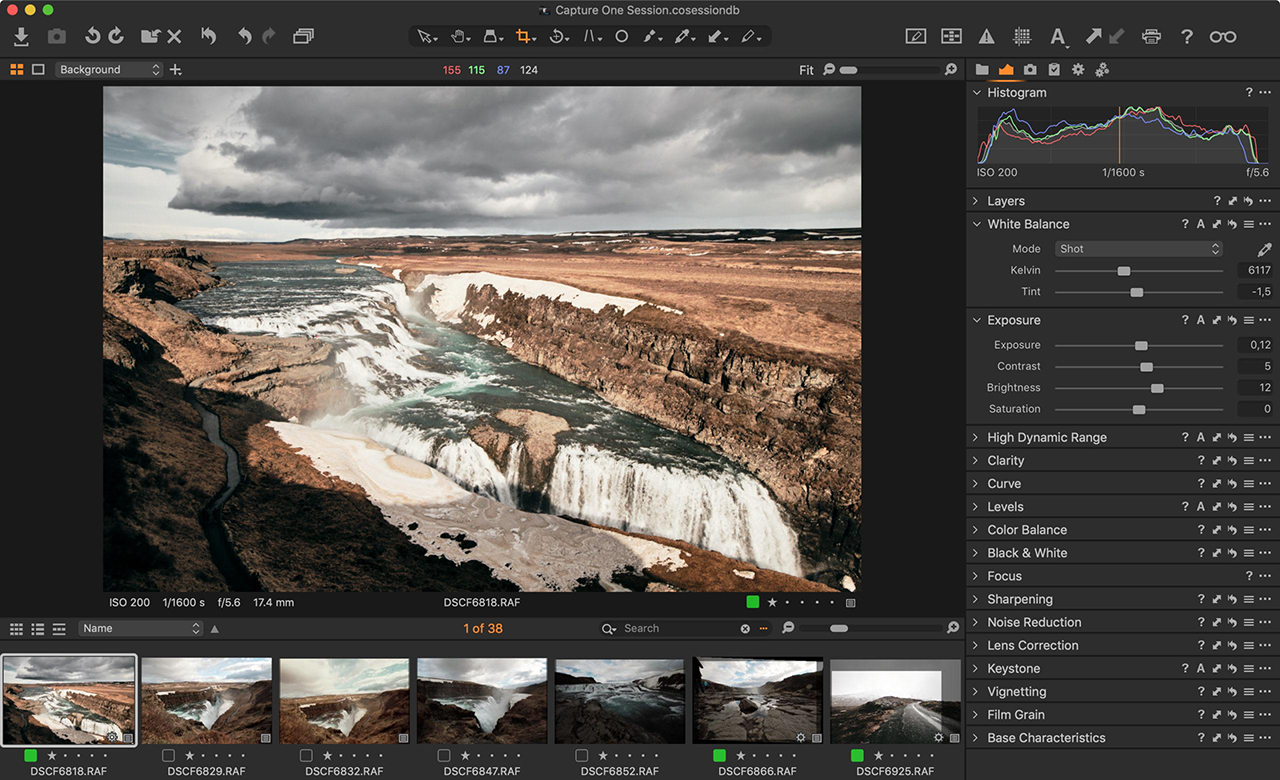
Introduction
In today’s fast-moving creative industry, photographers need more than just powerful tools—they need efficient workflows that save time, preserve quality, and allow flexibility across platforms. One of the most notable updates in 2026 is the improved integration between Capture One and Affinity Photo.
This new workflow support bridges a long-standing gap between raw photo processing and advanced design editing—without locking users into expensive subscription ecosystems.
What Is Capture One to Affinity Workflow Support?
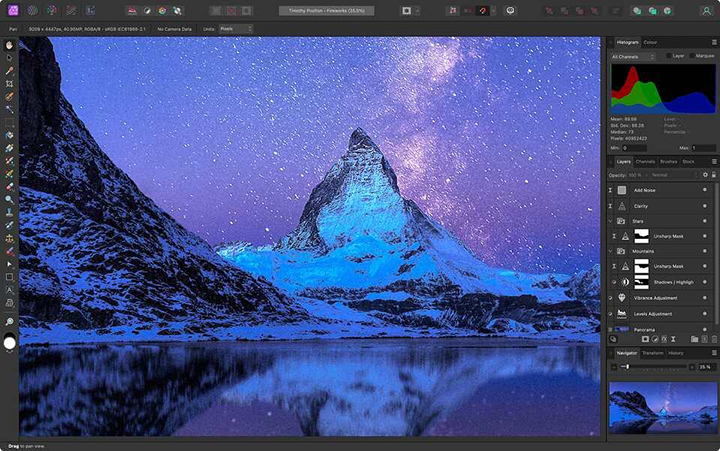
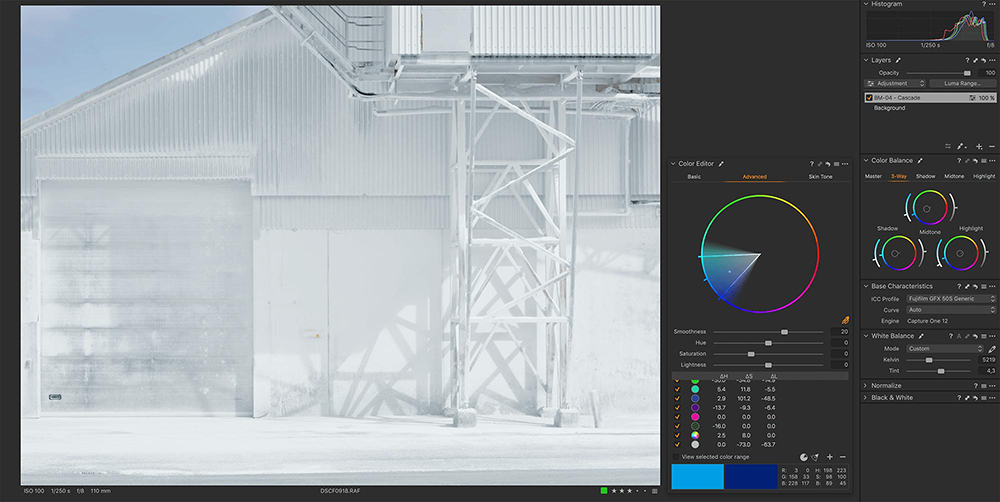
Capture One has long been a favorite among professional photographers for its advanced RAW processing, color grading, and tethered shooting capabilities. However, when it came to deeper editing—layers, compositions, and complex retouching—users often needed to jump into other tools.
With the new integration, you can now transfer your projects from Capture One into Affinity more seamlessly while preserving key elements such as:
- Layers
- Masks
- Guides
- Metadata
- Edits and file structure
This means less rebuilding, fewer errors, and a smoother transition from photo processing → creative editing → final export.
Why This Workflow Matters
1. No More Rebuilding Your Work
Previously, moving files between tools often meant flattening images or losing editable data. Now, your structure stays intact—saving hours of repetitive work.
2. Better Creative Control
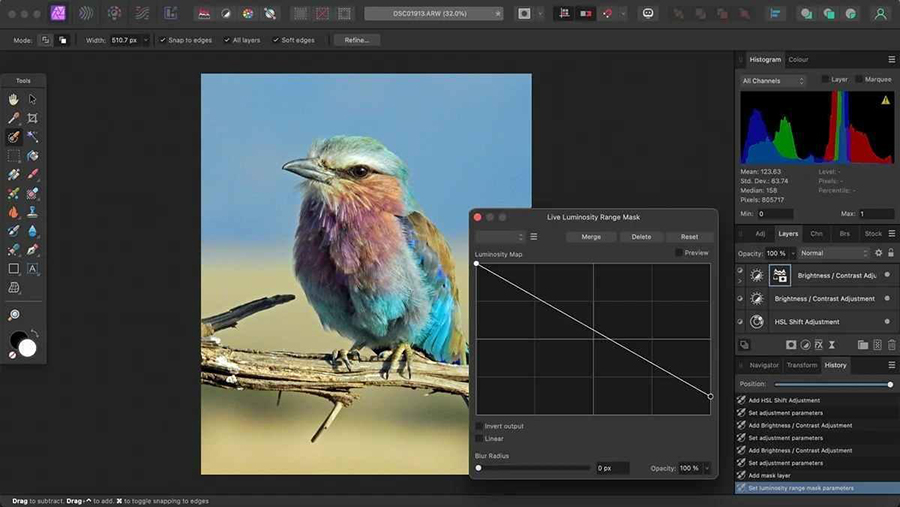
Affinity’s editing environment gives you powerful control over:
- Advanced layer compositions
- Non-destructive editing
- Precision masking and retouching
This complements Capture One’s strengths instead of replacing them.
3. A True Professional Pipeline
This integration creates a full workflow:
Capture One → Affinity → Final Output
From RAW processing to final design, everything feels connected and efficient.
Key Benefits for Photographers
Seamless Project Transfer
No need to export multiple versions or rebuild files manually.
Preserved Editing Structure
Your layers, masks, and guides stay usable—critical for professional projects.
Faster Turnaround Time
Less friction between tools means quicker delivery for clients.
Flexible Editing Environment
Switch from photo processing to design-focused editing without limitations.
Why Affinity Stands Out in This Workflow
While many photographers rely on subscription-based tools, Affinity offers a different approach—one that is gaining serious traction in 2026.
1. One-Time Purchase
No monthly fees. You own the software.
2. High-End Performance
Handles large files, detailed edits, and complex compositions with ease.
3. Cross-Discipline Workflow
Affinity isn’t just for photos—it connects with design and publishing tools as well.
Quick Comparison (Short & Clear)
Affinity Workflow vs Traditional Subscription Workflow
- Cost – Affinity is a one-time purchase vs ongoing subscriptions
- Control – Full editing flexibility without ecosystem limitations
- Workflow Speed – Faster transitions with preserved project data
Real-World Use Case
Imagine a typical professional shoot:
- You capture images tethered into Capture One
- Perform initial color grading and RAW adjustments
- Send selected images directly into Affinity
- Continue with retouching, compositing, and layout design
Instead of juggling multiple exports or losing data, everything stays structured and editable.
This is especially valuable for:
- Portrait photographers
- Product photographers
- Commercial and branding projects
- Social media content creators
What This Means for the Future of Creative Workflows
The line between photography and design continues to blur. Clients expect faster delivery, higher quality, and more creative output across platforms.
This integration shows a shift toward:
- Open workflows instead of closed ecosystems
- Efficiency over complexity
- Ownership over subscriptions
For professionals, that means more control over how you work—and fewer limitations imposed by tools.
Getting Started
If you’re already using Capture One, integrating Affinity into your workflow is a natural next step. And if you’re exploring alternatives to subscription-based software, this combination offers a strong, modern solution.
👉 Download Affinity and explore the workflow here:
https://www.affinity.serif.com/
How to Connect Capture One to Affinity (Quick Guide)
1. Set Affinity as External Editor in Capture One
Open Capture One and go to:
Edit → Preferences → Image → External Editor
- Click Choose
- Select Affinity Photo (latest version installed)
- Set format to TIFF (recommended)
- Choose 16-bit for best quality
- Color space: Adobe RGB or ProPhoto RGB
👉 This ensures maximum quality and keeps your editing flexibility.
2. Send Image to Affinity
Inside Capture One:
- Right-click your image
- Select Edit With → Affinity Photo
Capture One will automatically create a working file and open it in Affinity Photo.
👉 At this stage, your adjustments and structure are preserved as much as possible.
3. Edit and Return to Capture One
In Affinity:
- Perform your edits (layers, masks, retouching, etc.)
- Click File → Save (don’t use Save As)
Once saved, the edited file will automatically appear back in Capture One, ready for final export or delivery.
Pro Tip (Worth Knowing)
- Use TIFF instead of PSD for best compatibility
- Keep your workflow non-destructive in Capture One before sending
- Organize files in sessions/catalogs to avoid duplicates